Configure a Topcon Digi-Star Scale
Use these instructions to set up and connect a Topcon Digi-Star scale to the FeedComp App. Before you begin, make sure the scale is properly connected to a mixer so it can collect the data that will be sent to FeedComp.
After reviewing the manual, follow the sections below to verify your scale and setup, configure the required scale settings, connect the scale to the FeedComp App, and calibrate the scale (if needed):
- New to Working with Scales?
- Configure Scale Settings
- Required Scale Settings
- Connect the Scale to the FeedComp App via Bluetooth
- Calibrate the Scale
- Check the Scale Setup Number
- Troubleshoot Scale Issues
Supported Scales
- Topcon Digi-Star scale indicator (EZ2810 and EZ3410). Make sure the scale is Bluetooth-compatible (marked by a
 on the lower left corner of the scale).
 - If you use Trioliet Shifttronic products with your scale, contact FeedComp Support at fwsupport@vas.com or 888-225-6753 to ensure that you apply the correct settings for your configuration.
New to Working with Scales?
 A piece of farm equipment that mixes all the loaded ingredients for a feed recipe. Mobile mixers are most common, but stationary mixers also exist., skip ahead to Configure Scale Settings. If the scale needs to be replaced, use the instructions in the Topcon Digi-Star manuals to mount the new scale, reconnect the wiring, and proceed to Configure Scale Settings.
 If a scale is not already mounted and connected to your mixer, complete the hardware installation instructions in the operators manual. If you're installing a scale for the first time, it helps to understand how the mixer and scale components connect:
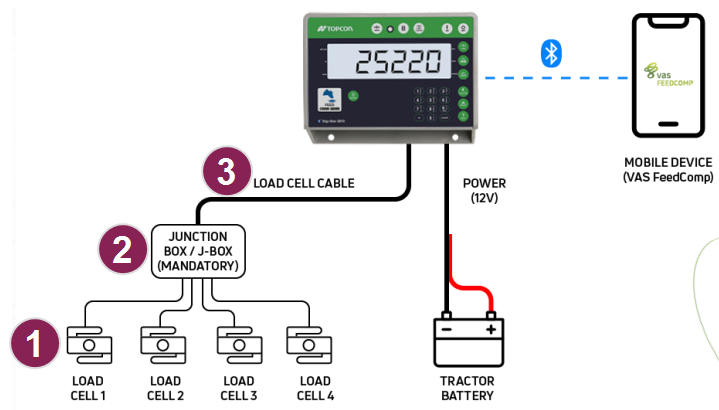
- The mixer has load cells that measure how much weight is on a mixer.
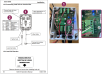
- The mixer's junction box houses all the wiring for the load cells. Topcon Digi-Star's manual shows how to connect the wires in the junction box:
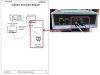
- The load cell cable connects the mixer's junction box to the scale. Topcon Digi-Star's manual shows how to connect the load cell cable from the junction box to the scale:
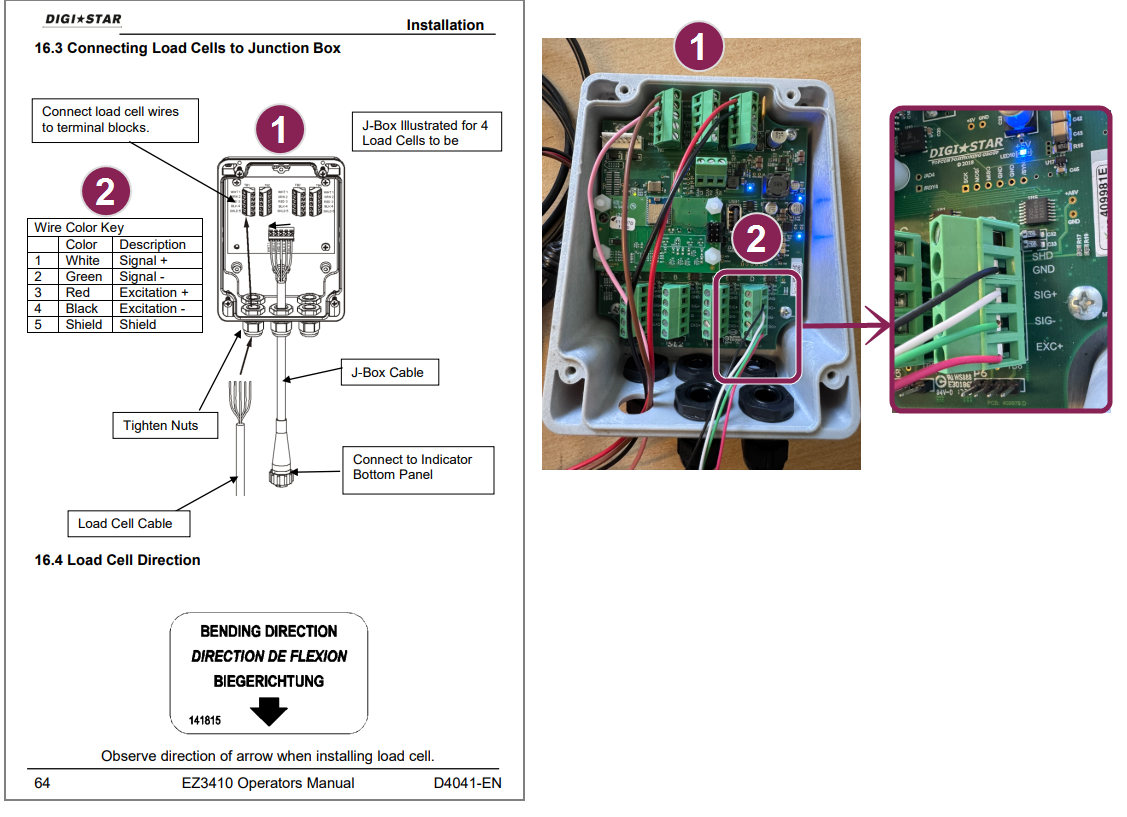
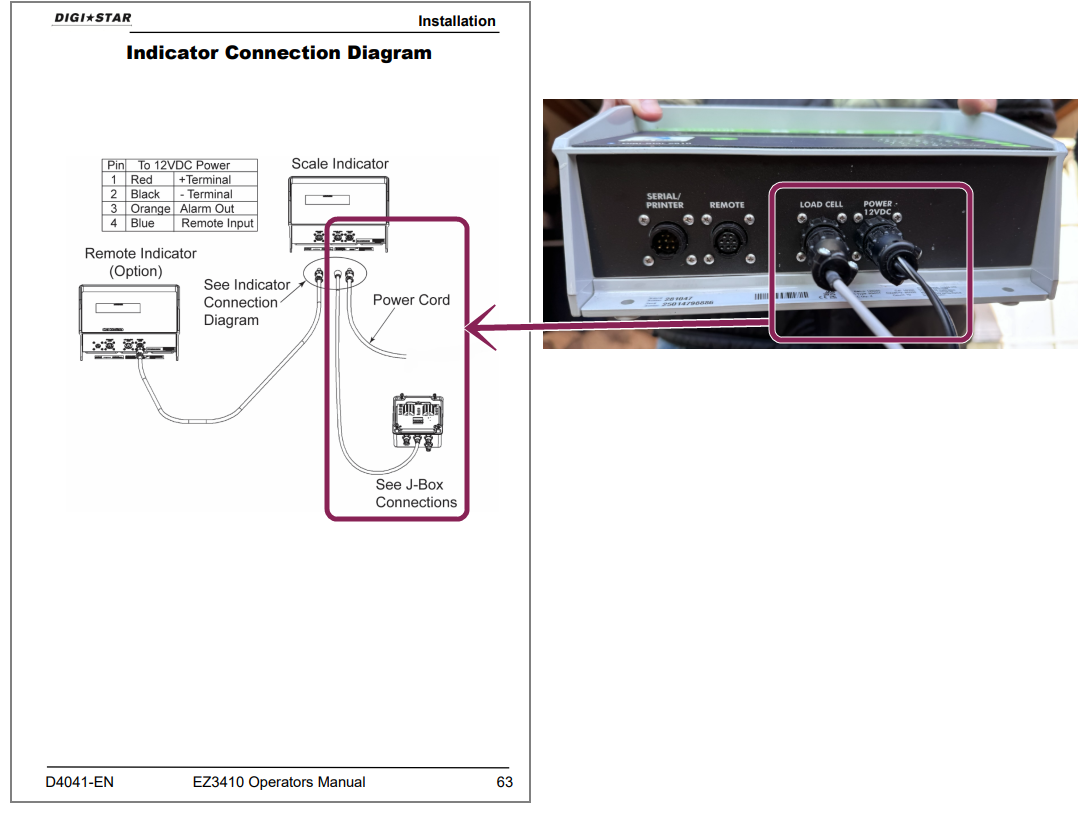
After installation is complete, return to this page and follow the steps in Configure Scale Settings.
Configure Scale Settings
Use the steps below to review or configure the settings on your scale to match the Required Scale Settings. Correct scale settings are critical for reliable communication between the FeedComp App and your scale. If the required settings are not configured correctly, the scale and app can fall out of sync, especially during pause and resume actions. This can cause the scale to remain in HOLD, prevent weights from updating correctly, or result in missed weight during feeding.
- Power on the Topcon Digi-Star scale.
- Press Select
 repeatedly until the Menu is displayed.
 - Press and hold Function
 until you see the menu choices.
 - Repeatedly press Select to select Menu 1, 2, 3, 4, or 5.
- Press Enter
 to view setting names. Pay close attention: the setting name only displays once.
 - Check whether the setting is configured to the value listed in Required Scale Settings:
- Press Net/Gross
 or Select to change an incorrect value.
 - Press Enter to save the correct value and move onto the next setting.
- Press Net/Gross
- Repeat the steps to review or configure each setting in each menu until you see Exit.
- Press On.
Required Scale Settings
Confirm that the scale settings match the settings listed below.
Menu 1
| Parameter Name | Direct Access Number (DAN #) | Parameter Value |
| Scale ID Identifier Setup (SCALID) |
1003 | TMR-01 |
| Display Unit (LB-KG) | 1008 | LB or KG |
| Remote Input (RMINP) | 1401 | Do not set to HOLD. |
| Remote Input 2 (RMINP2) | 1411 | PRINT. Do not set to HOLD. |
Menu 2
| Parameter Name | Direct Access Number (DAN #) | Parameter Value |
| Remote (REMOTE) | 2001 | ON |
| Scoreboard Mode The value that appears most often in a set of data. (SCOREM) |
2101 | 12 |
| Front Panel Zerout (ZEROFP) | 2103 | OFF |
| Scoreboard Mode 2 (SCRM2) | 2104 | 0 (Trioliet 11) |
| Operation Status (OPSTAT) | 2111 | 0 |
| Tare Auto Print (TAREAP) | 2301 | ON |
| One Line Print (ILPRT) | 2302 | ON |
| Print Format (PRTFMT) | 2304 | PRTAC1 |
| Remote Display (RMDISP) | 2401 | EZ3MUX |
| Remote Terminal (RMTERM) | 2402 | OFF |
| Auto Detect Remote Display (AUTODRD) | 2403 | ON |
| Bar Graph Mode (BARGRP) | 2411 | OFF |
| Weight Graph (WTGRPH) | 2412 | ON |
| Non-Digi-Star Display (NONDSP) | 2417 | OFF |
Menu 3
| Parameter Name | Direct Access Number (DAN #) | Parameter Value | Note |
| Display Count (COUNT) | 3001 | Preferred Value (.01, .02, .05, .1, .2, .5, 1, 2, 5, 10, 20, 50, or 100) | Only set this value if you need to change how the scale increments are displayed. The scale also uses this value to round the preset amount. This setting cannot be changed in the app. |
| Motion (MOTION) | 3101 | 0 (OFF) | — |
Menu 4
| Parameter Name | Direct Access Number (DAN #) | Parameter Value | Note |
| Pre-Alarm Method (P MTHD) | 4001 | WEIGHT | — |
| Pre-Alarm (P-ALM) | 4002 | Preferred Value | If you set this value, a warning is activated when the indicator approaches this value. For example, if you set the value to 50 (lbs/kgs), a warning alerts you when 50 (lbs/kgs) are set to be loaded or unloaded. |
| Preset Daily (PRTDLY) | 4006 | 1 | — |
| Preset Clear on Print (PRCLPT) | 4009 | ON | — |
| Weight Toggle (WEITOG) | 4012 | OFF | This setting hides the preset message display after 10% of the target weight has been loaded or unloaded. |
| Tolerance Method (T MTHD) | 4201 | WEIGHT | If the scale tolerance is 0, the value can be either WEIGHT or PERCENT. |
| Tolerance (TOLER) | 4202 | 0 | — |
Menu 5
| Parameter Name | Direct Access Number (DAN #) | Parameter Value |
| Remote Display (RMDPPT) | 5001 | COM3 |
| Radio Port (RADPRT) | 5002 | COM3 |
| External Radio Port (EXRPRT) | 5003 | COM2 |
| Printer Port (PRPORT) | 5005 | COM3 |
| Scoreboard Port (SCPORT) | 5006 | COM3 |
| Opstat Port (OPSTAT) | 5007 | COM1 |
| DDL Port (DDLPRT) | 5009 | COM2 |
| 20MA Mirror Port (20MAMR) | 5011 | COM1 |
| Scoreboard 2 Port (SCR2PRT) | 5015 | COM2 (Trioliet 1) |
| Bluetooth Port (BLPORT) | 5016 | COM3 |
| Remote Display Port 2 (RMD2PT) | 5018 | COM3 |
Menu 6
| Parameter Name | Direct Access Number (DAN #) | Parameter Value |
| Auto Print (AUTO PRINT) | 6231 | OFF |
Connect the Scale to the FeedComp App via Bluetooth
After you verify the scale settings, connect the scale to your mobile device via Bluetooth:
- On the scale, enter 90022 and press Select.
- If the display shows an error message, press the Zero button four times, then press ON. The keypad shows the current Bluetooth setting as ON or OFF.
- If Bluetooth is OFF, press the Function button to select ON, then Enter to save the setting.
- Open your mobile device's Bluetooth settings.
- Connect to the scale.
- After it is connected, shut down the app completely and make sure it is cleared from your list of background apps.
Calibrate the Scale
If you are using a brand new mixer, calibrate the scale to ensure weight measurements are accurate and that ingredients are loaded correctly during feeding. To learn how to calibrate the scale, watch Topcon Digi-Star's video or follow the instructions below:
- Before calibration, ensure that the mixer is empty and parked on a level surface.
- To perform the steps, a known weight needs to be used. Do not proceed with known weight calibration unless you have a known weight product that can be used during the calibration process (the more weight, the better).
Calculations Used in Calibration

Calibrate the Scale
- Set the Topcon Digi-Star scale to zero.
- Put the Known Weight product into the mixer.
- Example: 5,280 lbs
- Record the Scale Weight shown on the scale indicator.
- Example: 2,200 lbs
- Calculate the Weight Factor by dividing the Known Weight by the Scale Weight. Record this number.
- Example: 5,280 / 2,200 = 2.4
- Press Select until you see Setup, then press Function until you see SETUP.
- The scale displays the Setup Number. Do NOT change anything, just press the ON button once.
- The scale displays the Current Calibration Number. Record this number.
- Example: 16,000
- Calculate the New Calibration Number by multiplying the Weight Factor (per Step 4) by the Current Calibration Number (per Step 7).
- Example: 2.4 x 16,000 = 38,400
- Type in the New Calibration Number, then press ON to save your changes.
Check the Scale Setup Number
- Power on the Topcon Digi-Star's indicator.
- Press the Select button until the screen displays SETUP.
- Quickly press and hold the Function button until the scale's 6-digit Setup Number is displayed.
- If you need to change the Setup Number, enter the new number using the keypad, then press ON to save your changes.
- Press ON to return to the gross weight.
The screen then displays "CAL" followed by the scale's 5-digit Calibration Number.
Troubleshoot Scale Issues
For a list of scale issues and solutions, see Topcon Digi-Star's video: